|
|
|
| Flashvars are variables you can insert into your HTML code to control both behavior and appearance of the FLV Media Player, Image Rotator and WMV Player. With the swfobject embed method, you add them with the addVariable() function and with the embed tag method they are inside the flashvars attribute, stacked with an & symbol. For the wmvplayer, you can simply put all variables in a javascript array. Use the setup wizard to easily set all flashvars and copy-paste the resulting codes.
The default value for each flashvar is stated between () brackets. Unless otherwise specified, the flashvar applies to the mediaplayer, imagerotator and wmvplayer.
The basics
- height (320): Sets the overall height of the player/rotator.
- width (260): Sets the overall width of the player/rotator.
- file (undefined): Sets the location of the file to play. The mediaplayer can play a single MP3, FLV, SWF, JPG, GIF, PNG, H264 file or a playlist. The imagerotator only plays playlists. The wmvplayer only plays WMV and WMA files and MMS streams.
- image (undefined): If you play a sound or movie, set this to the url of a preview image. When using a playlist, you can set an image for every entry.
- id (undefined): Use this to set the RTMP stream identifier (example) with the mediaplayer. The ID will also be sent to statistics callbacks. If you play a playlist, you can set an id for every entry.
- searchbar (true): Set this to false to hide the searchbar below the display. You can set the search destination with the searchlink flashvar.
The colors
- backcolor (0xFFFFFF): Backgroundcolor of the controls, in HEX format.
- frontcolor (0x000000): Texts & buttons color of the controls, in HEX format.
- lightcolor (0x000000): Rollover color of the controls, in HEX format.
- screencolor (0x000000): Color of the display area, in HEX format. With the rotator, change this to your HTML page's color make images of different sizes blend nicely.
The setup wizard contains a picker for the colors, so you can select the colors you like if you don't know the HEX values.
Display appearance
- logo (undefined): Set this to an image that can be put as a watermark logo in the top right corner of the display. Transparent PNG files give the best results (example).
- overstretch (false): Sets how to stretch images/movies to make them fit the display. The default stretches to fit the display. Set this to true to stretch them proportionally to fill the display, fit to stretch them disproportionally and none to keep original dimensions.
- showeq (false): Set this to true to show a (fake) equalizer at the bottom of the display. Nice for MP3 files.
- showicons (true): Set this to false to hide the activity icon and play button in the middle of the display.
- transition (random): Only for the rotator. Sets the transition to use between images. The default, random, randomly pick a transition. To restrict to a certain transition, use these values: fade, bgfade, blocks, bubbles, circles, flash, fluids, lines or slowfade
Controlbar appearance
shownavigation (true): Set this to false to completely hide the controlbar.
showstop (false): Not for the rotator. Set this to true to show a stop button in the controlbar.
showdigits (true): Not for the rotator. Set this to false to hide the elapsed/remaining digits in the controlbar.
showdownload (false): Not for the rotator. Set this to true to show a button in the player controlbar which links to the link flashvar.
usefullscreen (true): Not for the rotator. Set this to false to hide the fullscreen button and disable fullscreen.
Playlist appearance (only for the mediaplayer)
- autoscroll (false): Set this to true to automatically scroll through the playlist on rollover, instead of using a scrollbar.
- displayheight (height): Set this smaller as the height to show a playlist below the display (example). If you set it the same as the height, the controlbar will auto-hide on top of the video (example).
- displaywidth (width): Set this smaller as the width to show a playlist to the right of the display (example).
- thumbsinplaylist (true): Set this to false to hide preview images in the display (and restrict the buttons to a single line).
Playback behaviour
- audio (undefined): Not for the wmvplayer. Assigns an additional, synchronized MP3. Use this for a closed audio description or director's comments with the mediaplayer or background music with the rotator. When using the mediaplayer and a playlist, you can assign audio to every entry.
- autostart (false for players, true for rotator): Set this to true in the player to automatically start playing when the page loads, or set this to false with the rotator to prevent the automatic rotation.
- bufferlength (3): Not for the rotator. Sets the number of seconds a video should be buffered before the players starts playback. Set this small for fast connections or short videos and big for slow connections.
- captions (undefined): Only for the mediaplayer. Assigns closed captions. Captions should be in TimedText format (example). When using a playlist, you can assign captions for every entry.
- fallback (undefined): Only for the mediaplayer. If you play an MP4 file, set here the location of an FLV fallback. It'll automatically be picked by older flash players (example).
- repeat (false): Not for the wmvplayer. Set this to true to automatically repeat playback of all files. Set this to list to playback an entire playlist once.
- rotatetime (5):Not for the wmvplayer. Sets the number of seconds an image is played back.
- shuffle (false): Not for the wmvplayer. Set this to true to playback a playlist in random order.
- smoothing (true): Only for the mediaplayer. Set this to false to turn of the smoothing of video. Quality will decrease, but performance will increase. Good for HD files and slower computers. Example.
- volume (80): sets the startup volume for playback of sounds, movies and audiotracks.
Here's also a tutorial and example setup for accessible video playback.
External communication
- callback (undefined): Only for the mediaplayer. Set this to a serverside script that can process statistics. The player will send it a POST every time an item starts/stops. To send callbacks automatically to Google Analytics, set this to urchin (if you use the old urchinTracker code) or analytics (if you use the new pageTracker code).
- enablejs (false): Not for the wmvplayer (which is already entirely JS). Set this to true to enable javascript interaction. This'll only work online! Javascript interaction includes playback control, asynchroneous loading of media files and return of track information. More info at this demo page.
- javascriptid (undefined): Not for the wmvplayer. If you interact with multiple mediaplayers/rotators in javascript, use this flashvar to give each of them a unique ID. More info at this demo page.
- link (url): Set this to an external URL or downloadeable version of the file. This link is assigned to the display, logo and link button. With playlists, set links for every entry in the XML.
- linkfromdisplay (false): Set this to true to make a click on the display result in a jump to the webpage assigned to the link flashvar.
- linktarget (_self): Set this to the frame you want hyperlinks to open in. Set it to _blank to open links in a new window or _top to open in the top frame.
- recommendations (undefined): Only for the mediaplayer. Set this to an XML with items you want to recommend. The thumbs will show up when the current movie stops playing, just like YouTube. Here's an example setup and example XML.
- searchlink (http://search.longtail.tv/?q=): Only for the mediaplayer. Sets the destination of the searchbar. The default is the LongTail search page (which you can brand with your logo, colors and XML), but you can set other destinations (e.g. http://yoube.com/results?search_query=). Use the searchbar flashvar to hide the bar altogether.
- streamscript (undefined): Only for the mediaplayer. Set this to the URL of a script to use for http streaming movies. The parameters file and pos are sent to the script. Here's more info and an example script. If you use LigHTTPD streaming, set this to lighttpd.
- type (mp3,flv,rtmp,jpg,png,gif,swf): Only for the mediaplayer, which determines the type of file to play based upon the last three characters of the file flashvar. This doesn't work with database id's or mod_rewrite, so you can set this flashvar to the correct filetype. If not sure, the player assumes a playlist is loaded.
|
dark다크묵墨
2008/06/10 22:24
2008/06/10 22:24
|
| Track this back : http://darkm.i234.me/trackback/113 |
|
|
|
|
|
| 일반 동영상을 flv 파일로 변환하는 show 라는 프로그램입니다.
다운로드
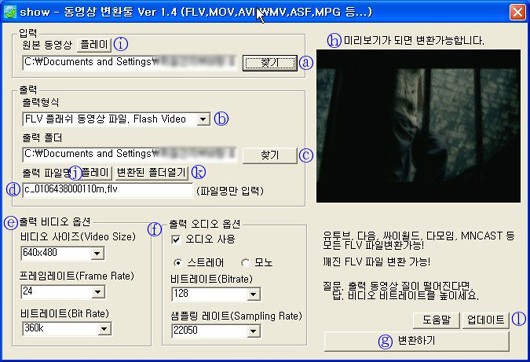
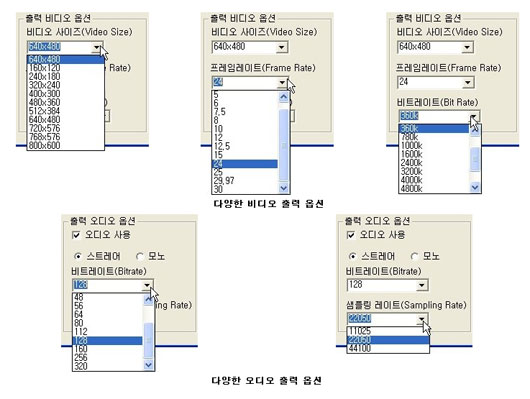
테스용 동영상 파일인 AVI, MOV, WMV 포맷을 FLV로 변환하기 위해서는 우선 SHOE를 실행합니다. 그 다음, 아래와 같은 방법으로 파일을 변환하면, 간단히 동영상 사이트에 업로드할 수 있는 FLV 파일을 만들 수 있습니다. 1. ⓐ에서 찾기 버튼을 눌러 변환시킬 원본 파일을 불러옵니다. 그럼, ⓗ에서 미리보기를 통해 동영상 화면을 확인할 수 있습니다. 만약, ⓗ에서 미리보기 화면이 보이지 않는다면, 파일 변환은 불가능합니다. 참고로, 원본 파일을 불러왔을 때는 ⓔ, ⓕ에서는 원본에 대한 정보 자동으로 제공되며, 이곳에서 바로 변환될 파일의 출력 비디오 / 오디오 옵션을 원본과 비교해 설정할 수 있습니다. 좀 더 쉽게 설명하면, 원본 파일을 불러왔을 때 보여지는 값은 원본 동영상에 대한 정보이며 이곳에서 다시 사용자가 설정값을 변경하면, 변환될 동영상의 설정값입니다. 만약, FLV 파일이외에 다른 파일로 변환하고 싶다면, ⓔ 출력형식에서 다른 파일 형식을 선택하면 됩니다.
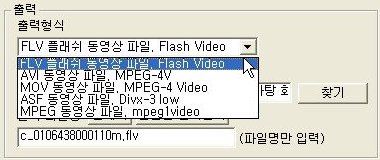
2. ⓑ에서 출력형식을 FLV 플래시 동영상 파일, Flash Video로 선택합니다.
3. ⓒ에서 찾기 버튼을 눌러 변환될 파일의 저장될 경로를 지정한 다음, ⓓ에서 변환이 완료될 파일명을 입력합니다. 이 두 항목은 원본 파일을 불러올 때, 불러온 원본 파일명에 확장자만 바뀐 상태로 자동 설정되어 있으므로 따로 바꿀 필요는 없습니다.
4. 변환될 동영상의 설정이 끝났으며, ⓖ에서 변환히기를 클릭합니다.
출처 : 리뷰조선 |
dark다크묵墨
2007/07/28 21:21
2007/07/28 21:21
|
| Track this back : http://darkm.i234.me/trackback/77 |
|
|
|
|
|
>금방 쓴 글이나 올린 그림이 갱신되지 않고 나타나지 않는다.
>일반 링크는 제대로 갱신 되지만 플래시에 걸린 링크는 제대로 갱신되지 않는다.
>
>geturl("링크주소","타겟"); 으로 해결 되지 않는다.
>어떻게 해야 하나.
저도 이것때문에 고생했습니다.
글을 등록해도 제대로 보이지 않고 삭제해도 삭제 되지 않고
어떨땐 다른 게시판에 중복 되는 경우도 있었습니다.
이건 임시파일이 읽혀 오는걸 막아야 합니다.. 그러기 위해서 고유번호를 계속 바꿔주어야 합니다.
게시판소스를 링크 시킨 경우엔
getURL("링크주소" + "&noCache=" + (random(1000000) + random(1234567)),"타겟");와 같이
[ "링크주소" ] 를 [ "링크주소" + "&noCache=" + (random(1000000) + random(1234567)) ]로
바꿔주면 됩니다.
일반문서의 경우엔
getURL("링크주소?=id" + "&noCache=" + (random(1000000) + random(1234567)),"타겟");와 같이
[ "링크주소" ] 를 [ "링크주소?id=" + "&noCache=" + (random(1000000) + random(1234567)) ]로
바꿔주면 됩니다.
이경우는 일반문서이기 때문에 특정 번호를 할당해 주어야 하는 구문이 필요하기 때문입니다.
이것에 관한 자료는 많지 않습니다. 저도 여러 질답란을 헤매다가 알게된 것들하고 실험해 본 것들 몇가지로 알아낸 팁입니다. 도움이 되기를....
정확한 이론은 잘 모르겠지만 이 방법으로 해결이 가능합니다.
이 게 몇년 전에 알아낸 방법이니 지금은 버젼업 되면서 해결 되었을지도 모르겠네요. |
dark다크묵墨
2007/06/14 23:06
2007/06/14 23:06
|
| Track this back : http://darkm.i234.me/trackback/25 |
|
|
|
|
|
| ==> 플래시 또는 동영상 사용시에 포커스가 생기는 현상 없애기 위해서,,,
##### flashWrite.js 내용
<!--
// flashWrite(파일경로, 가로, 세로, 아이디, 배경색, 변수, 윈도우모드)
function flashWrite(url,w,h,id,bg,vars,win){
// 플래시 코드 정의
var flashStr="<object classid='clsid:d27cdb6e-ae6d-11cf-96b8-444553540000'
codebase='http://fpdownload.macromedia.com/pub/shockwave/cabs/
flash/swflash.cab#version=8,0,0,0' width='"+w+"' height='"+h+"' id='"+id+"'
align='middle'>"+
"<param name='allowScriptAccess' value='always' />"+
"<param name='movie' value='"+url+"' />"+
"<param name='FlashVars' value='"+vars+"' />"+
"<param name='wmode' value='"+win+"' />"+
"<param name='menu' value='false' />"+
"<param name='quality' value='high' />"+
"<param name='bgcolor' value='"+bg+"' />"+
"<embed src='"+url+"' FlashVars='"+vars+"' wmode='"+win+"' menu='false'
quality='high' bgcolor='"+bg+"' width='"+w+"' height='"+h+"' name='"+id+"'
align='middle' allowScriptAccess='always' type='application/x-shockwave-
flash' pluginspage='http://www.macromedia.com/go/getflashplayer' />"+
"</object>";
// 플래시 코드 출력
document.write(flashStr);
}
-->
##### flashWrite.js 파일 include
<script language="javascript" src="어디어디/flashWrite.js"></script>
##### flash 적용하기
<script>flashWrite('어디어디/Navi.swf','800','600','sample','#f0f0f0','v1=&v2=','transparent')</script>
==> 파일경로, 가로, 세로, 아이디, 배경색, 변수, 윈도우모드 순서로,,
==> transparent 를 notransparent 로 하면 투명 플래시 처리가 해제
일반 플래시를 띄우실때는 notransparent 로,,,!!!
출처 : Tong - pusiko님의 유용한TIP통 |
dark다크묵墨
2007/05/29 00:35
2007/05/29 00:35
|
| Track this back : http://darkm.i234.me/trackback/8 |
|
|
|
|